
Free Software Download Center
Software for industrial data collection, monitoring, and analysis.
CLOSING A PROJECT
When all operations related to the project being worked on in the EOS SCADA Editor have been completed, the currently open project can be closed using the CLOSE PROJECT command.
Closing the project terminates the working connection between the user and the active project and allows the editor to continue operating without an active project.
The CLOSE PROJECT command can be accessed through both the Program menu and the Quick Access Button Bar available on the screen.

When the user wants to close the SCADA project they are currently working on, the CLOSE PROJECT command should be used.
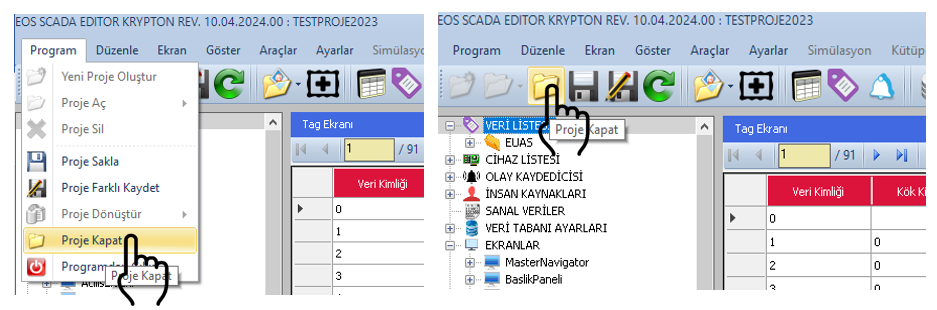
This command closes the currently active project from the EOS SCADA Editor working environment.
Once the project is closed, the user can no longer work with the screens, components, or project settings of the closed project. If the user wants to continue working with another project, the relevant project must be opened again.
Important: Closing a project does not mean that the EOS SCADA Editor application itself is completely closed. Only the project that is currently open and being worked on is closed.
The CLOSE PROJECT command can be accessed in two different ways within EOS SCADA Editor to close the active project.
Open the Program menu on the Main Menu Bar and click the CLOSE PROJECT submenu item.
Alternatively, click the CLOSE PROJECT button directly on the Quick Access Button Bar located in the upper section of the editor window.
Both methods perform the same project closing operation.
The following steps can be followed to close the active project:
Once the project closing operation is completed, the active project is removed from the working environment.
If the user wants to work on another project, the OPEN PROJECT command can be used to select a new project from the available projects.
If a new project needs to be created, a new SCADA project can be created using the CREATE NEW PROJECT command.
Operation Summary: The CLOSE PROJECT command only closes the active project. The EOS SCADA Editor application continues to run.
The user can close the project they are currently working on by using the CLOSE PROJECT button on the Quick Access Button Bar located in the upper section.
The same operation can also be performed by using the CLOSE PROJECT submenu item under the Program menu.
When the project is closed, the active project is removed from the working environment. The user can then open another existing project to continue working or create a new project.
Free Software Download Center
Software for industrial data collection, monitoring, and analysis.

Technical Support
Software documentation, sample code, and practical technical information.
You can contact us regarding EOS software, technical documentation, or industrial data communication.