
Free Software Download Center
Software for industrial data collection, monitoring, and analysis.
EXITING THE PROGRAM
When the work performed in the EOS SCADA Editor is completed, the application should be closed in a controlled manner.
The program can be exited by using the close button located in the upper-right corner of the application window or through the main menu.

When the user wants to exit the EOS SCADA Editor application, the program can be terminated using one of two different methods.
The first method is to click the close (X) button located in the upper-right corner of the application window. When this button is used, the EOS SCADA Editor window is closed and the application exit process is initiated.
The second method is to use the program's main menu. To do this, open the Program menu in the main menu and select the EXIT PROGRAM submenu item.
To exit the program:
EOS SCADA Editor allows the user to exit the application both through the window management controls and through the program menu.
The user can click the
 button
located in the upper-right corner of the Editor main window.
This is the standard window closing method used in Windows applications and can be used to terminate the EOS SCADA Editor application.
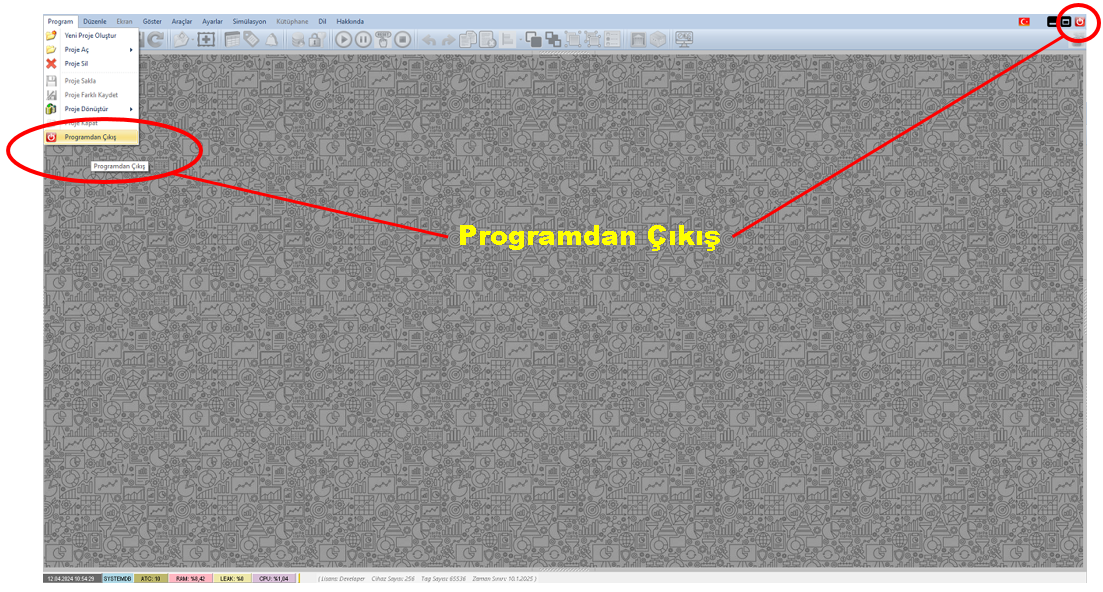
To exit the program through the main menu, open the Program menu.
The application can be terminated by clicking the EXIT PROGRAM option in the menu that opens.
Tip: During daily use, the user can choose whichever exit method is more convenient. Both methods can be used to exit the program.
It is recommended to save any changes made to the project before exiting the program.
In particular, if changes have been made to SCADA screens, object properties, or project configuration, make sure that the work has been saved.
If there are unsaved changes, depending on the behavior of the relevant version of EOS SCADA Editor, the user may be presented with a confirmation or warning asking whether the changes should be saved.
Important: To prevent changes made to the project from being lost, it is good practice to save the current state of the project before exiting the application.
There are two basic methods for exiting the EOS SCADA Editor application. The user can either use the X close button located in the upper-right corner of the application window or use the Program → EXIT PROGRAM option in the main menu.
Both methods can be used to exit the application in a controlled manner. Saving the work performed on the project before exiting the program is important for preserving data and project changes.
Free Software Download Center
Software for industrial data collection, monitoring, and analysis.

Technical Support
Software documentation, sample code, and practical technical information.
You can contact us regarding EOS software, technical documentation, or industrial data communication.