
Free Software Download Center
Software for industrial data collection, monitoring, and analysis.
OPENING EXISTING PROJECTS
Previously created SCADA projects in the EOS SCADA Editor can be reopened later to continue development and make further modifications.
To open an existing project, use the OPEN PROJECT command in the program. This command provides access to the list of available projects, allowing the user to select the project they want to work on.

To continue working on a previously created SCADA project, the project to be opened must first be selected from the list of existing projects.
The OPEN PROJECT command is used within the EOS SCADA Editor to view existing projects and select a project.
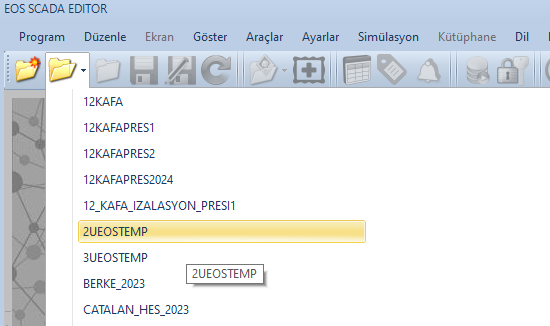
This command can be accessed both through the corresponding quick access button on the screen and through the Program menu in the main menu.
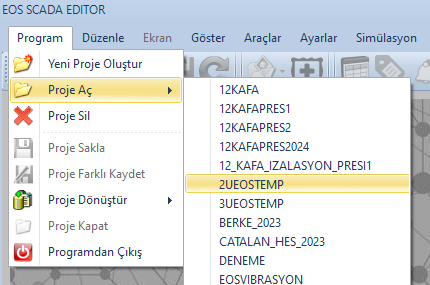
Basic Operation: When the OPEN PROJECT command is used, the EOS SCADA Editor presents the user with a list of existing projects available on the system.
The OPEN PROJECT command can be accessed in two different ways to open an existing project.
Clicking the OPEN PROJECT button on the EOS SCADA Editor main screen displays the list of existing projects.
Alternatively, the Program menu in the main menu can be opened and the OPEN PROJECT menu item can be selected.
Both methods open the project selection screen where the available projects are displayed.
When the OPEN PROJECT command is executed, the list of existing projects available to the EOS SCADA Editor is displayed.
The user can select the project to be worked on from this list.
The project to be opened must be located and selected in the list. Selecting a project determines the information required by the EOS SCADA Editor to load the corresponding project.
Tip: When selecting a project from the list, make sure that the selected project is the correct one to avoid accidentally working on the wrong project.
After the list of existing projects is displayed, the project to be opened must be selected from the list.
The selected project will be opened by the EOS SCADA Editor, and the required project information will begin to load.
Procedure:
When the project to be opened is selected, the EOS SCADA Editor loads the information associated with the selected project and prepares it for the working environment.
Once the project loading process is complete, the user can access the development environment of the corresponding SCADA project and continue working on the project from where previous work left off.
This makes it possible to reuse, edit, and further develop a previously prepared SCADA project without creating a new project.
Result: Once the selected project information has been successfully loaded, the EOS SCADA Editor working environment is associated with the corresponding project, allowing the user to continue working on it.
To open an existing project in the EOS SCADA Editor, the OPEN PROJECT button on the screen or the Program → OPEN PROJECT command in the main menu can be used.
When the command is executed, the list of existing projects is displayed. The user selects the project to be worked on from this list.
The information associated with the selected project is loaded by the EOS SCADA Editor, making the project available in the working environment. The user can then continue development and editing work on the previously created SCADA project.
Free Software Download Center
Software for industrial data collection, monitoring, and analysis.

Technical Support
Software documentation, sample code, and practical technical information.
You can contact us regarding EOS software, technical documentation, or industrial data communication.